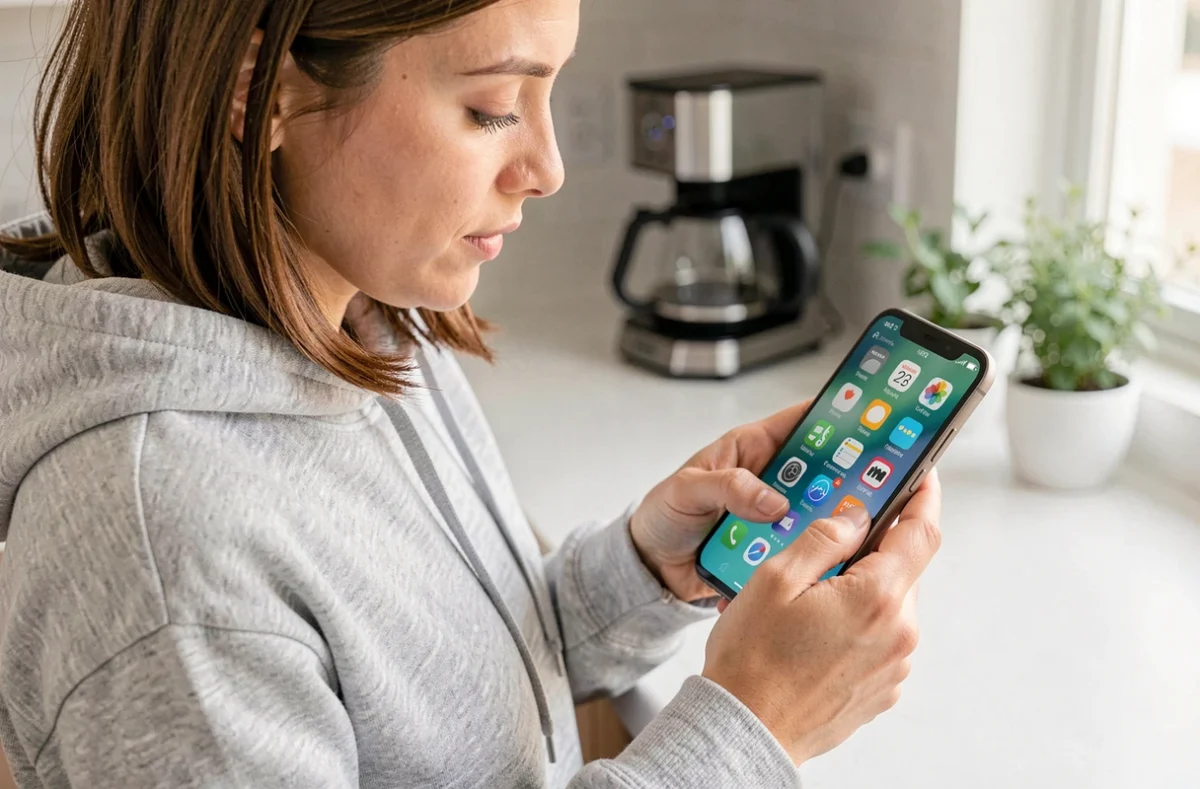
Displaying an app on a smartphone’s home screen takes just one gesture, but the method varies depending on the operating system, the manufacturer’s interface, and one often-overlooked setting. Android and iOS handle the link between the app drawer and the home screen differently, which explains most of the missing icons reported by users.
Android app drawer and iOS App Library: what changes on the home screen
The Android app drawer and the iPhone App Library serve a similar purpose (storing all installed apps), but their default behavior when a new app is installed differs in one key respect.
| Feature | Android (stock and Samsung) | iOS (iPhone) |
|---|---|---|
| Centralized storage | App drawer | App Library |
| New app on the home screen | Yes by default (unless changed in the launcher settings) | Depends on the setting: Home Screen or App Library only |
| Gesture to add manually | Long-press the icon in the drawer, then drag | Long-press in the App Library, then drag |
| Removing from the home screen | Removes the shortcut; the app remains installed | Removes the icon; the app remains in the App Library |
| Private space (hidden apps) | Android 15: lockable Private Space | No direct native equivalent |
On iPhone, the App Library Only option in the Home Screen settings prevents new apps from appearing automatically. It’s the first thing to check when a newly installed app seems to be missing.
To show apps on the home screen of an iPhone configured this way, swipe right to the App Library, find the app, then press and hold it and drag it to the desired page.

Adding an app to the Android home screen: the gesture and its variations
The basic method works on the vast majority of Android smartphones, whether it’s a Samsung Galaxy, a Xiaomi, or a Pixel.
- Open the app drawer by swiping up from the bottom of the home screen (or tapping the drawer icon, if available).
- Find the app you want, then press and hold it with your finger until the icon appears to lift off the screen.
- Without lifting your finger, drag the icon up the screen to reach the desired home screen page, then release it where you want it.
- On some Samsung Galaxy devices, a context menu offers the “Add to Home screen” option as soon as you press and hold, so there’s no need to drag.
This shortcut doesn’t move the app: the original remains in the app drawer. Removing the icon from the home screen therefore doesn’t uninstall the app.
Launcher setting that changes this behavior
On Xiaomi devices running MIUI or HyperOS, a setting under Settings, then Home screen, lets you switch between two modes: one with a separate app drawer and one where all apps appear directly on the home screen, with no drawer. This choice radically changes the layout, since in the second mode, every installation automatically creates an icon on a home screen page.
Samsung offers a similar setting under Settings, Home screen, Home screen layout.
Android 15 Private Space: when an installed app becomes invisible
Android 15 introduces Private Space, an isolated, lockable profile that adds a little-known scenario. An app installed in this space disappears from the launcher, search, and notifications as soon as the space is locked.
Installing an app in Private Space creates a separate copy of the app. Data isn’t transferred from the main installation. If an app seems to be missing even though it was downloaded, check that it wasn’t accidentally installed in this space.
To find the app, simply unlock Private Space (accessible at the bottom of the app drawer). You can then move the icon to the home screen using the usual press-and-hold-and-drag gesture.

Folders and the dock: organize your home screen without cluttering it
Stacking dozens of shortcuts on the home screen eventually recreates the original problem: finding an app takes time. Two built-in features help organize the layout.
Create an app folder
On both Android and iOS, dragging one icon onto another automatically creates a folder. The system prompts you to name it. Grouping apps by purpose (messaging, photos, banking) reduces the number of visible icons while keeping them directly accessible from the home screen.
Pin apps to the bottom bar
The bar at the bottom of the home screen (the dock) stays visible no matter which page is displayed. It usually holds four or five icons. Placing your most-used apps there (phone, browser, messaging) gives you constant access without swiping between pages.
To add an app, first free up a spot by removing an existing icon (press and hold, then drag it out of the dock), then drop the new app there.
Common smartphone home screen display issues
A missing icon doesn’t mean the app has been uninstalled. Several causes come up regularly.
- The “App Library Only” setting on iPhone prevents newly installed apps from appearing automatically.
- A launcher update can reset the home screen layout on some Android devices.
- Android 15 Private Space hides the apps it contains when locked.
- Accidentally disabling an app in Settings removes it from the app drawer. Re-enable it under Settings, Apps, then Show disabled apps to fix the issue.
Restarting the device resolves most temporary display glitches related to the launcher cache. If the icon is still missing after a restart, checking the Play Store or App Store to confirm that the app is installed is the most reliable way to diagnose the issue.
Managing the home screen comes down to a simple gesture—press and hold, then drag—but the launcher and system settings determine whether that’s all you need or whether an extra step is required. Checking the settings for how new apps appear when installed prevents most situations where an app seems to have disappeared.